
티스토리 뷰
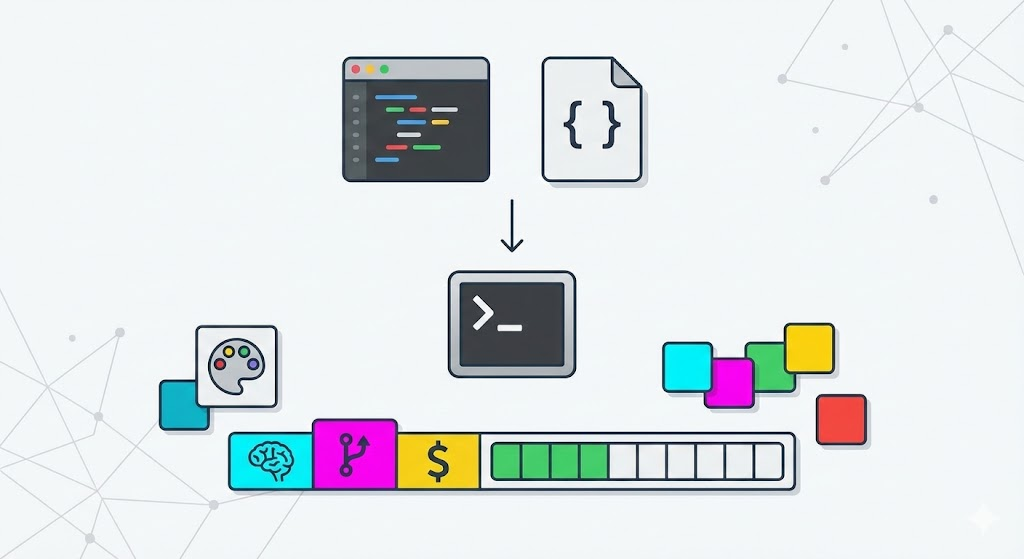
Claude Code StatusLine이란?
Claude Code는 터미널 하단에 커스텀 상태줄(statusLine)을 표시할 수 있다. settings.json에 command를 설정하면, Claude Code가 JSON 형태의 세션 정보를 stdin으로 전달하고, 스크립트의 stdout 출력을 상태줄에 렌더링한다.
표시할 수 있는 정보:
- 모델명 — 현재 사용 중인 Claude 모델 (e.g., Opus 4.6)
- Git 브랜치 — 현재 작업 중인 브랜치
- 비용 — 세션 누적 API 비용
- 컨텍스트 사용량 — 컨텍스트 윈도우 사용 퍼센트
간단 버전
모델명, 브랜치, 컨텍스트, 비용을 한 줄로 표시하는 기본 스크립트.
statusline.ps1
$json = [Console]::In.ReadToEnd()
$obj = $json | ConvertFrom-Json

$model = $obj.model.display_name
$pct = [math]::Floor($obj.context_window.used_percentage)
$cost = '$' + ('{0:F2}' -f $obj.cost.total_cost_usd)
$branch = git branch --show-current 2>$null
if (-not $branch) { $branch = "no-git" }

Write-Output "$model | $branch | ctx: $pct% | $cost"
출력 예시:
Opus 4.6 | main | ctx: 25% | $0.12
컬러풀 버전
ANSI 컬러 + 컨텍스트 프로그레스 바가 포함된 버전.
요소 색상
| 모델명 | 시안(Cyan) |
| 브랜치 | 마젠타(Magenta) |
| 비용 | 초록(Green) |
| 프로그레스 바 | 50% 미만 초록, 50~80% 노랑, 80%+ 빨강 |
statusline.ps1
[Console]::InputEncoding = [System.Text.Encoding]::UTF8
[Console]::OutputEncoding = [System.Text.Encoding]::UTF8
$json = [Console]::In.ReadToEnd()
$obj = $json | ConvertFrom-Json

$model = $obj.model.display_name
$pct = [math]::Floor($obj.context_window.used_percentage)
$cost = '$' + ('{0:F2}' -f $obj.cost.total_cost_usd)
$branch = git branch --show-current 2>$null
if (-not $branch) { $branch = "no-git" }

$e = [char]27
$reset = "$e[0m"
$dim = "$e[2m"
$cyan = "$e[36m"
$magenta = "$e[35m"
$green = "$e[32m"
$yellow = "$e[33m"
$red = "$e[31m"

# progress bar
$barLen = 15
$filled = [math]::Round($pct / 100 * $barLen)
$empty = $barLen - $filled

if ($pct -lt 50) { $barColor = $green }
elseif ($pct -lt 80) { $barColor = $yellow }
else { $barColor = $red }

$bar = "$barColor" + ([string][char]0x2588 * $filled) + "$dim" + ([string][char]0x2591 * $empty) + "$reset"

Write-Output "$cyan$model$reset $dim|$reset $magenta$branch$reset $dim|$reset $green$cost$reset $dim|$reset $bar $barColor$pct%$reset"
출력 예시:
Opus 4.6 | main | $1.37 | ████░░░░░░░░░░░ 25%
(실제 터미널에서는 각 요소가 지정된 색상으로 표시되고, 프로그레스 바 색상이 사용량에 따라 변한다.)
UTF-8 인코딩 주의: 컬러풀 버전에서 유니코드 블록 문자(█, ░)를 사용하므로, 스크립트 상단의 [Console]::OutputEncoding = [System.Text.Encoding]::UTF8 설정이 반드시 필요하다. 없으면 ????로 깨진다.
적용 방법
Step 1: 스크립트 파일 생성
위의 간단 버전 또는 컬러풀 버전 중 하나를 선택하여 statusline.ps1로 저장한다.
# PowerShell에서 파일 생성 (경로 확인)
notepad $env:USERPROFILE\\.claude\\statusline.ps1
Windows에서는 반드시 PowerShell 스크립트(.ps1)를 사용해야 한다. bash/sh 스크립트는 동작하지 않는다.
Step 2: settings.json 수정
settings.json을 열어 statusLine 항목을 추가한다. <USERNAME>은 본인의 Windows 사용자명으로 변경.
notepad $env:USERPROFILE\\.claude\\settings.json
{
  "statusLine": {
    "type": "command",
    "command": "powershell -ExecutionPolicy Bypass -File C:/Users/<USERNAME>/.claude/statusline.ps1"
  }
}
기존에 다른 설정이 있다면 statusLine 블록만 추가하면 된다.
Step 3: 확인
Claude Code를 실행하면 하단에 상태줄이 바로 표시된다. 재시작이 필요 없다.
정상 동작하지 않을 경우 체크리스트:
- settings.json의 경로가 실제 .ps1 파일 위치와 일치하는가?
- 경로 구분자가 /(슬래시)인가? (\\는 JSON에서 이스케이프 문자이므로 주의)
- .ps1 파일이 UTF-8로 저장되어 있는가? (컬러풀 버전의 경우)
'develop-and-AI' 카테고리의 다른 글
| Talk is cheap, and so is code (0) | 2026.04.08 |
|---|---|
| Claude Code 프로파일 전환 설정 가이드(Windows 에서 GLM도 쓰기) (0) | 2026.02.09 |
| Claude Code의 statusline (0) | 2025.08.21 |
| Claude Code 업데이트 오류 - 원인은 중복 설치 (0) | 2025.07.26 |
| Kiro: 소프트웨어 요구사항 표기법 - EARS (0) | 2025.07.21 |

- Total
- Today
- Yesterday
- 잡학툰
- 체호프
- golang
- websocket
- Echo
- bun
- API
- 인텔리제이
- github
- claude code
- backend
- MCP
- postgres
- OpenAI
- clean agile
- 독서
- strange
- 클린 애자일
- 오블완
- Gin
- notion
- go
- solid
- gocore
- agile
- 독서후기
- 티스토리챌린지
- intellij
- ChatGPT
- 영화
| 일 | 월 | 화 | 수 | 목 | 금 | 토 |
|---|---|---|---|---|---|---|
| 1 | ||||||
| 2 | 3 | 4 | 5 | 6 | 7 | 8 |
| 9 | 10 | 11 | 12 | 13 | 14 | 15 |
| 16 | 17 | 18 | 19 | 20 | 21 | 22 |
| 23 | 24 | 25 | 26 | 27 | 28 | 29 |
| 30 | 31 |